Your data never goes to a cloud. You keep your own data, which is why QND uses an old phone or a PC at home as the collector. One-time unlock, no subscription.
Plain-English steps for getting QND Solar Monitor running. Search below, or tap a topic to open it.
The home collector runs on Windows or Mac. The phone app connects to all of them the same way (same pairing code, same home-WiFi dashboard, same private Tor link for away from home), so you can mix them: a Mac at home with an Android phone, a Windows PC with an iPhone, and so on. Install the phone app only from Google Play (Android) or the Apple App Store (iPhone). If someone gave you a referral code, type it in the app when it asks for one. Pick the computer that stays on most. Downloads for both are beta: a Setup.exe for Windows and a .dmg for Mac.
You'll need a Windows PC on the same home network as your inverters. It should be one that stays on.
Any Mac running macOS 11 or newer, Apple silicon or Intel, on the same home network as your inverters.
http://localhost:8760/setup. It finds your inverters, shows a live reading, then shows a code to scan on your phone. It starts at login and keeps the Mac awake (the screen can still turn off).To remove it: launchctl bootout gui/$(id -u) ~/Library/LaunchAgents/com.appdevelopmentforyou.qnd.plist, then delete ~/Library/Application Support/QND Solar Monitor and the app.
Spare-phone collector mode is part of the production app as it rolls out.
http://<collector address>:8760/pair (for example http://192.168.0.191:8760/pair).The QR code is what lets your phone in from away from home. Don't share a picture of it.
QND searches your home network for Solarman-style WiFi logger sticks (port 8899), EG4 WiFi dongles (port 8000) and Modbus TCP devices, then asks each one for its brand and model. Parallel stacks show up as one system with each inverter listed.
If something is missing, make sure the logger stick's light shows it's on your WiFi, and that your PC or spare phone is on the same network (not a guest network).
If your inverter has a network port, plug it into your router and QND reads it over Modbus TCP.
If it only has an RS485 port, an RS485-to-Ethernet adapter (usually about $20–40) puts it on your network. Wire the adapter's A/B terminals to the inverter's RS485 pins, using the inverter manual for the pinout, and set the adapter to Modbus TCP server mode. Then let QND scan again.
EG4 inverters come with an EG4 WiFi or WiFi + Ethernet dongle. QND finds the dongle on your home network by itself, so there's nothing to type in. The dongle keeps sending data to the EG4 app as usual.
No dongle? Use an RS485 adapter on the inverter's RS485 port (Modbus, 19200 baud). EG4 support is in beta: it follows the published register map but hasn't been tested on every model yet.
Sol-Ark (and Deye/Sunsynk) inverters are read through a Solarman-style WiFi stick, which QND finds automatically, or through an RS485 adapter.
Growatt SPF off-grid inverters: the Growatt ShineWiFi-F stick only talks to Growatt's cloud, so connect the inverter's USB or RS485 port to your PC instead.
EG4 3000EHV-48 is built by SRNE, so it uses the same proven SRNE map. Connect it with an RS485 adapter.
All of these are in beta. Tell us how it goes on your model.
No. EG4, Sol-Ark and Growatt support is read-only. QND can't send setting changes to these inverters, so it can't change how your system runs.
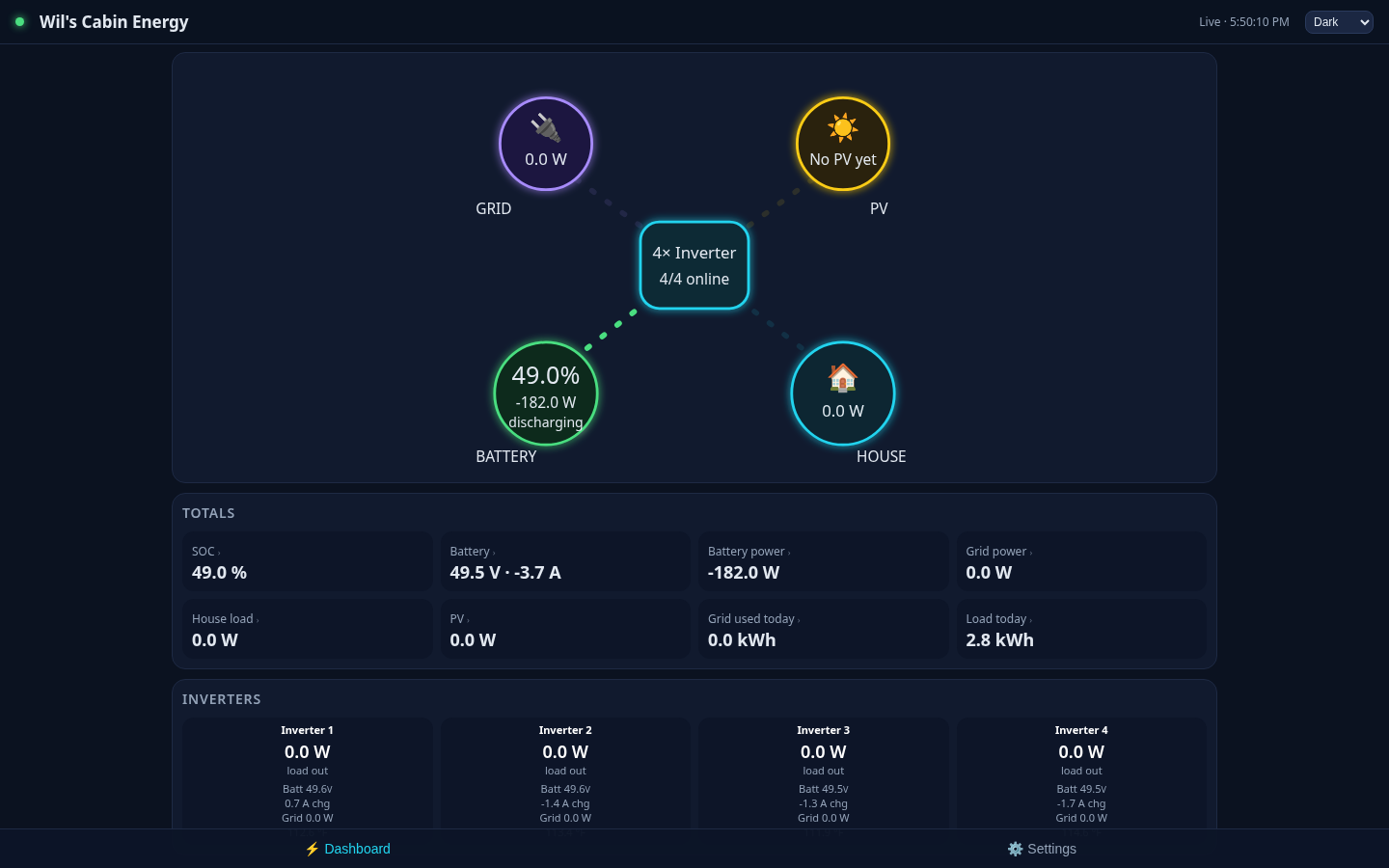
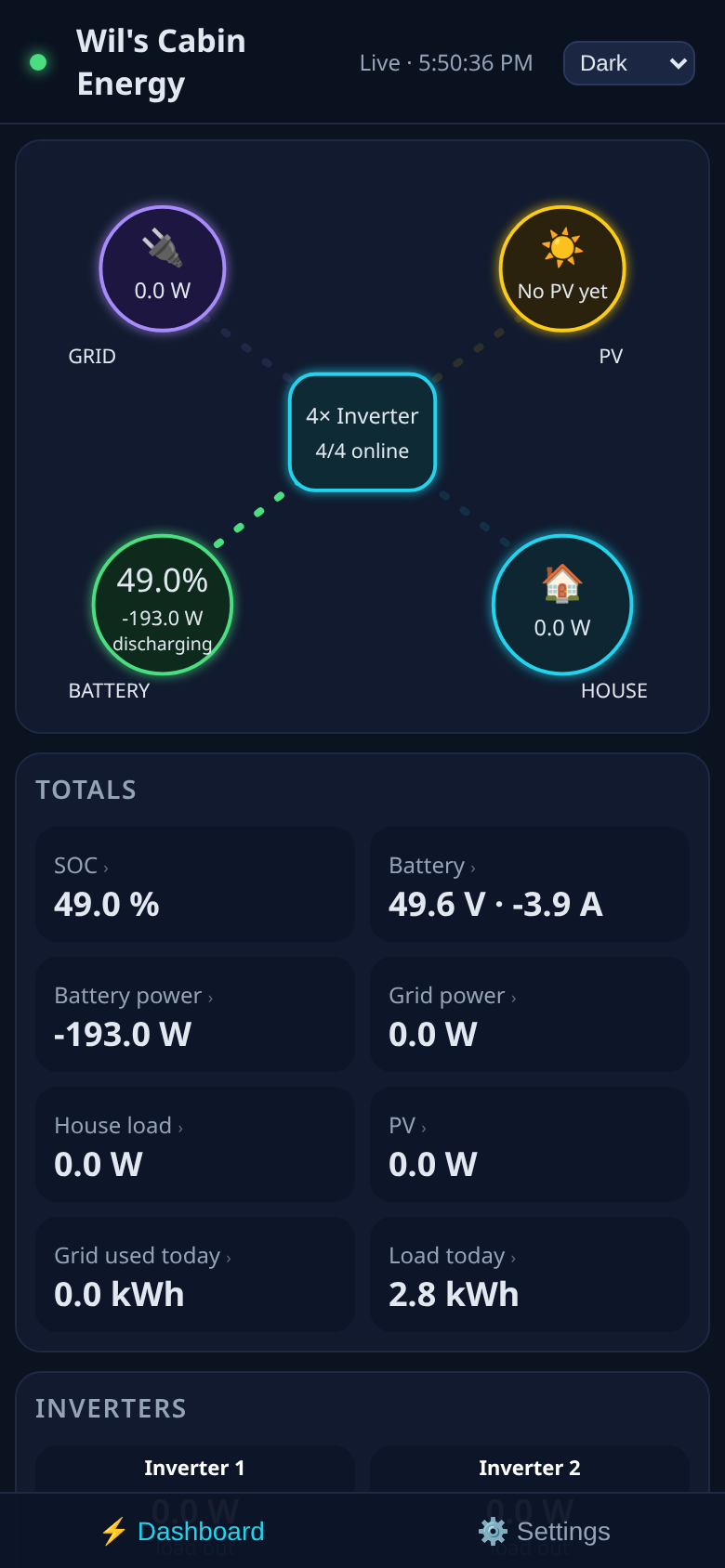
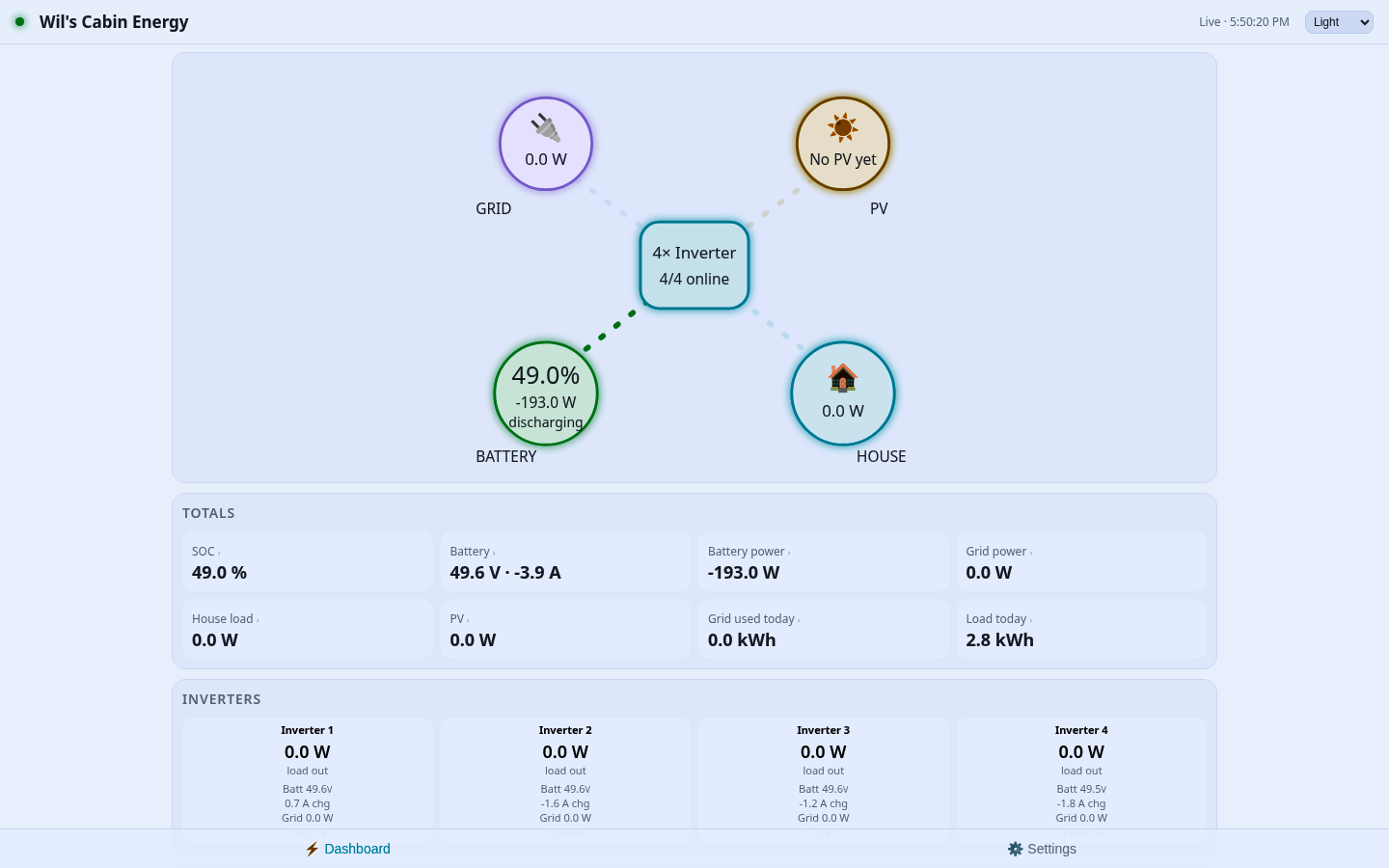
Simple shows battery %, solar, house load, one green/yellow/red health light, a plain-English line such as “Running on solar” or “Running on battery”, and alerts in plain words. Advanced turns on the full per-inverter details, history and settings. Switch between them any time.
QND can warn you when the battery is getting low, the battery or an inverter is too hot (or the battery too cold to charge), an inverter shows a fault or warning code, grid power goes out or comes back, the PC loses contact with an inverter, or the battery is full. Alerts are written in plain English, and the same alert won't repeat for an hour (you can change that). There(')s nothing more to pay: there's no cloud service and no subscription.
How often? Every 30 seconds while the app is open. In the background, Android runs the check about every 15 minutes, which is the fastest it allows. Battery saver or Doze can stretch that out. Away from home the check goes through Tor, so it can take a minute. The PC keeps watching all the time, so alerts wait there until your phone checks.
Your PC can also email you, or text you through your carrier's free email-to-text address. It sends from your own email account, so nothing is shared with us.
Some carriers are slow with email-to-text or have dropped it. If texts don't arrive, use email. Your phone can still notify you about new email.
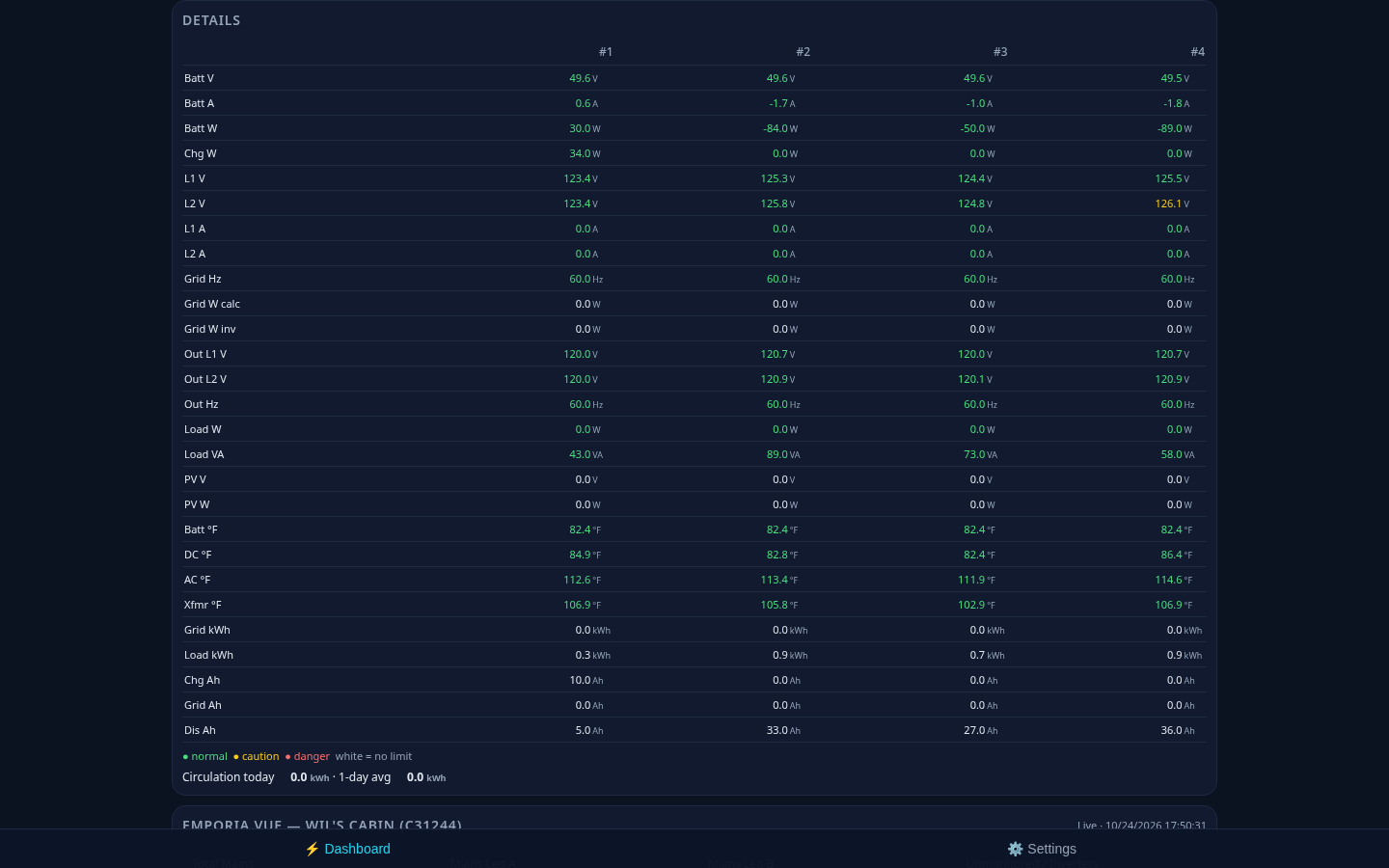
Green means normal. Yellow means caution, so keep an eye on it. Red means it's in the danger range, so check your system. White means that value has no limit set.
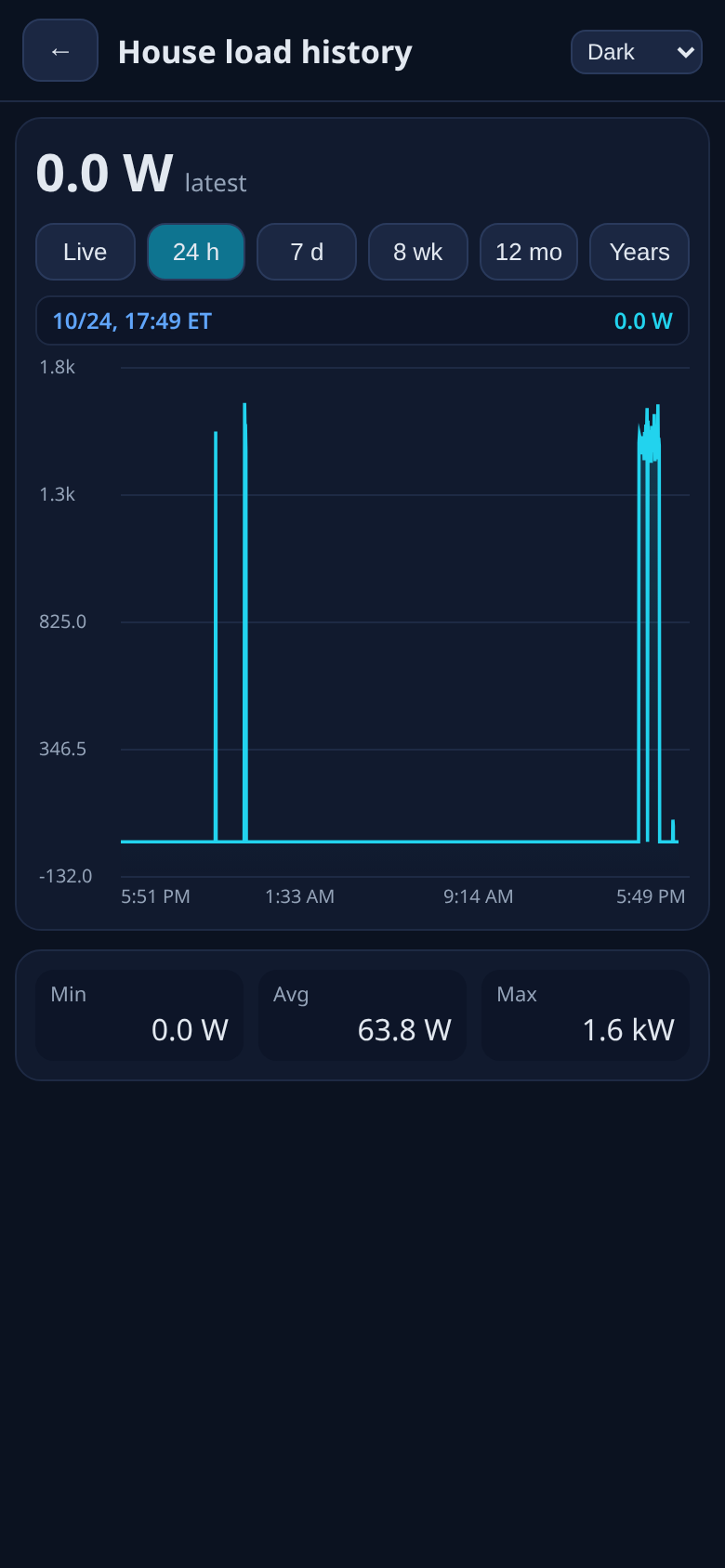
Tap any total, like SOC, load or PV, to open its graph. Pick Live, Hours, Days, Weeks, Months or Years, then drag your finger or mouse across the graph to move the crosshair and read the exact time and value. New installs start with short history that fills in over time.
If you're not sure what a setting does, leave it alone and check your inverter manual first.
If you have an Emporia Vue or Sense, add your login in Settings and its section appears on the dashboard. Sense is used for whole-home totals only. If you don't have one, the section stays hidden. More monitors are planned.
At home, any browser works. Away from home, the QND app connects through its built-in Tor, with no router changes, port forwarding or account needed. The first connection can take 5–30 seconds, and live updates may lag a little.
Use the theme switch at the top of any page. System follows your phone or PC setting, and your choice applies to every page.
The collector checks for updates and installs them itself, and your settings and history are kept. The phone app updates through Google Play or the App Store.
Every new install gets a 5 Day evaluation period with full use: live readings, history, and email and text alerts. A banner shows 5 Day evaluation period: X days left. When it ends you’ll see “Your 5 Day evaluation period has ended. Buy once to keep using QND Solar Monitor.” Buy once and it stays unlocked for good. Reinstalling the app or the computer program doesn’t restart the 5 Day evaluation period. While your phone’s 5 Day evaluation period is running, its paired home computer opens too.
— The QND team, App Development For You LLC
Either one, once. Bought on the phone (Google Play or App Store): the computer program is included; pair it and it unlocks, and its local dashboard keeps working at home without the phone. Bought on the computer (Mac App Store, or the Microsoft Store version for Windows): the computer runs fully with no phone at all, and any phone you pair later shows Unlocked by your home computer’s purchase with no buy screen. If you downloaded the Windows or Mac program from this website, after the 5 Day evaluation period it shows a link to buy in the Microsoft Store or Mac App Store, or you can just pair a paid phone.
No. One purchase unlocks one home computer. If you get a new PC, open the phone app, tap Forget this computer / Transfer unlock, then pair the new computer. Your Google Play or App Store purchase stays on the phone. A Mac App Store or Microsoft Store purchase follows your Apple or Microsoft account instead: sign in on the new computer and it moves there by itself. Family Sharing still works: each family member’s phone can unlock their own one computer.
On the phone that bought QND, open the app → Forget this computer / Transfer unlock. That frees the purchase. Install the collector on the new computer, finish setup until you see the pairing code, then scan it. Email and text alerts stay off until the new computer is unlocked again.
The browser dashboard on your computer opens once a phone that has bought QND Solar Monitor is paired with it. Pair your phone (scan the code from /pair), then open the app while the phone is on your home WiFi. The app unlocks the computer automatically, and it stays unlocked even if the internet goes down. Any combination works: Windows or Mac with Android or iPhone.
/pair on your collector.Windows may ask whether to let QND use the network. Choose Allow access on Private networks. That lets browsers on your home network open the dashboard. You don't need to allow Public networks.
The collector can't read while the PC sleeps. In Windows Settings → System → Power, set "When plugged in, put my device to sleep after" to Never. Turning the screen off is fine.
Only on your own collector, your PC or spare phone. There's no QND cloud.
No. Start with a 5 Day evaluation period with everything included, email and text alerts too. After 5 days, buy once, on Google Play or the App Store. One purchase covers your phone and your home computer: buy on the phone and the computer program is included, or, once the Mac App Store and Microsoft Store versions arrive (coming soon), buy on the computer and the phone app is unlocked once you pair it. Nobody pays twice. No subscription. The computer program costs nothing to download and has the same 5 Day evaluation period.
Yes, at home on your WiFi. Away from home, use the app.
SRNE/SunGoldPower is supported and tested. The inverters Signature Solar sells (EG4 18kPV, 12kPV, FlexBOSS, 6000XP, 12000XP, 3000EHV), plus Sol-Ark and Growatt, are in beta. Voltronic/MPP, EG4 GridBOSS and Victron are coming. See supported inverters.
No. QND Solar Monitor is made by App Development For You LLC and isn't affiliated with any inverter maker.
Nothing matched. Try other words.
 QND Solar Monitor